Handling Environment Variables in Lambda the Right Way
Cloud & DevOps Engineer with hands-on expertise in cloud architecture, containerization, and Infrastructure as Code. I design automated pipelines, optimize infrastructure, and help teams adopt cloud-native solutions with confidence.
Raj Nandgaonkar
Majorly simplifies deployments.
Press enter or click to view image in full size
Configs and using configs for secrets is common in software development. It allows you to remove sensitive information from your code and place it somewhere secure where only your code or certain people with the right credentials can access. It also allows you to abstract certain values- like a database table name- from your code which allows you to write to a dev table or a prod table by simply changing the config.
Quick Info: If you’re unsure what I mean by configs, think of it like this: instead of assigning your API Key directly to a variable in your code, you can put it in a JSON file and then pull that file into your code and extract the API Key that way. This is considered more secure because it separates your keys from the code.
Config handling for Lambda functions in AWS is very similar, but we don’t actually need to use a config file or anything else as the Lambda function has Environment Variables built directly into the function’s UI. Because Lambda is built in the AWS environment, this gives us some very powerful tools for security with secrets. It also allows us to build Dev and Prod Lambdas very easily by simply changing environment variables.
How exactly can we accomplish this?
Lambda Function Environment Variables
First off, what are environment variables?
You can think of environment variables as being the key DNA of the ecosystem in which your code runs.
For example, if your code accesses APIs, databases and their tables, or has form data from Dev and Prod forms running through it, the keys, names, and form IDs are all part of your code’s ecosystem and differentiate say your development environment from your production environment. They are the core differentiators in your code.
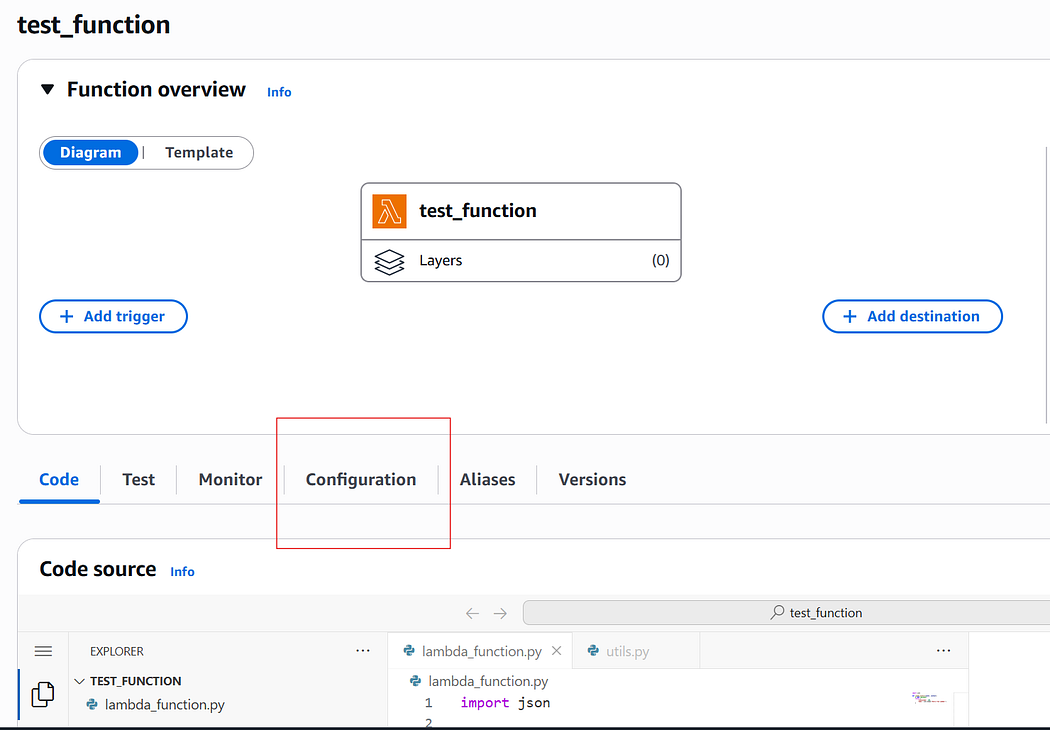
In AWS, you can access your Environment Variables from the Configuration Tab on your Lambda’s home page. Then click Edit and you are ready to go with your first {key: value} pair.
Press enter or click to view image in full size
Press enter or click to view image in full size
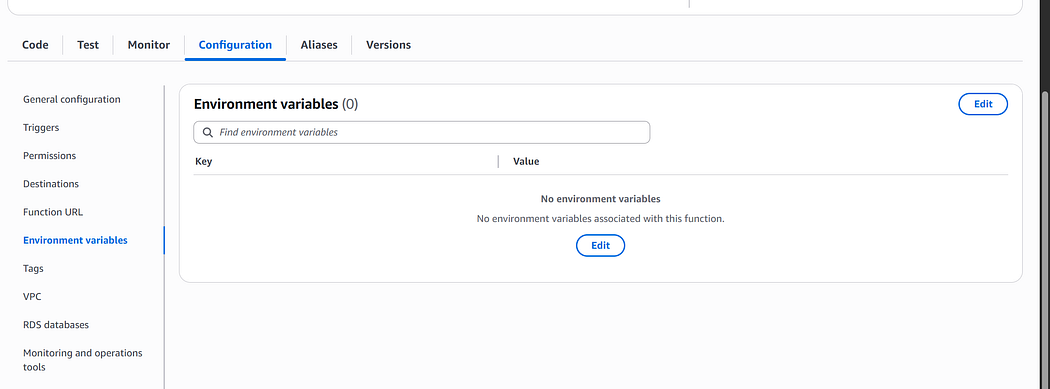
These can then be accessed in your code by simply using the following code:
import os

my_key = os.environ.get("MY_SECRET")
Secrets Manager returns the secret’s value under the key ‘SecretString’ in the response payload.
Pretty slick, right?
The ‘Right’ Way to use Environment Variables
In my experience with writing Lambda functions, the following two ideas are what I would consider best practice when using Environment Variables in AWS Lambda Functions.
If you’d have to change the variable’s value moving between environments, set it as an Environment variable, don’t hardcode it in your code.
If it is a secret (API key, database name, etc), store the actual value in AWS Secrets Manager and access through Boto3.
We’ll break each of these down into more detail.
Use Environment Variables for Configurable Values
Let’s say you have a Lambda function that handles forms coming in from user submissions and you want to be able to have a Dev environment that perfectly replicates the Prod environment.
With Lambdas this is very easy to accomplish, as you can deploy the same code via .zip or Docker container to both a Prod Lambda and a Dev Lambda. However, the issue that can arise is this:
- If you have variables for form IDs and your database names that are hard coded into your Lambda, you will have to change these in the code prior to deploying to either Lambda, which has a risk of development test forms being written to production or production forms written to the test environment.
You can easily avoid this risk by removing the hard coded values and placing them as a ‘{key: value}’ pair in the Environment Variables and then calling them with ‘os.environ.get()’.
If you have a Dev database and a Prod database, simply change the name of which secret you want to access in Secrets Manager in your Lambda Environment Variables.
Like this:
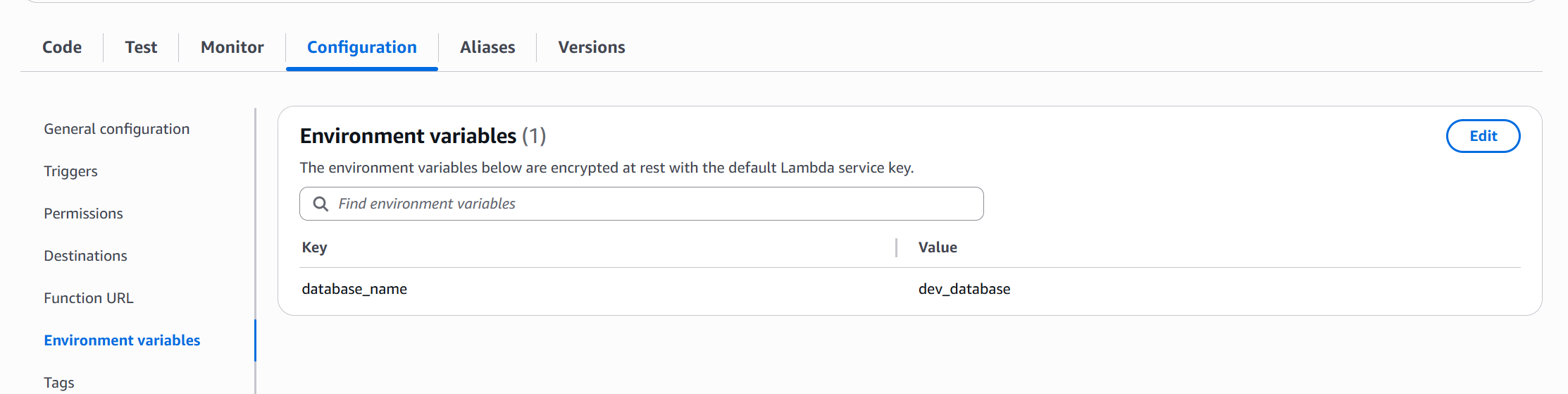
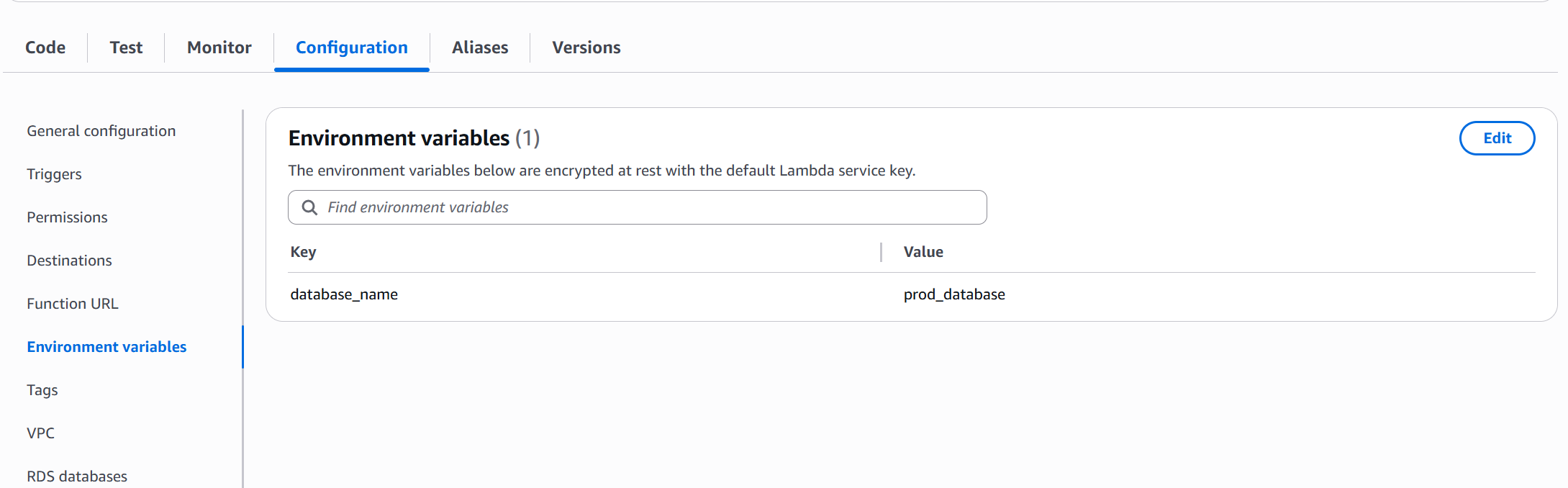
Now you can literally use the exact same code for both Dev and Prod and as long as you have the values set in the Environment Variables, you are good to go.
Your Dev to Prod process now becomes a matter of deploying your code to your Dev Lambda first, testing, and then deploying to your Prod Lambda.
Store Secrets Securely with AWS Secrets Manager
The process is almost the same for secrets, but with an added twist for security.
Sure, you could just put your API Key directly into the Environment Variables, but this is definitely not as secure as storing secrets in AWS Secrets Manager and then creating another ‘{key: value}’ pair with the key being a another secret name and the value being the API Key.
This can then be access in the following way- assuming the Lambda is in the same AWS environment as the Secrets Manager:
Create a function called get_secret in your config.py folder that uses Boto3 to call Secrets Manager.
Grab your secret key name using ‘os.environ.get()’.
Using get_secret, get the actual API Key from Secrets Manager and assign it to a variable that can be used in your Lambda.
Use your key as you normally would.
That’s it. As long as your Lambda environment matches your Secrets Manager (meaning it is in the same AWS account and the AWS region is the same), you can extract your secret from Secrets Manager using Boto3 and then use it just as you would any other variable.
To write your get_secret function, you can just use the following code:
# function in config.py
import boto3
import json
import os

def get_secret(secret_name_arg):
    secret_name = os.environ[secret_name_arg]
    region_name = os.environ['AWS_REGION']

    client = boto3.client('secretsmanager', region_name=region_name)

    try:
        response = client.get_secret_value(SecretId=secret_name)
        secret = response['SecretString']
        return json.loads(secret)
    except Exception as e:
        print(f"Error retrieving secret: {e}")
        return None
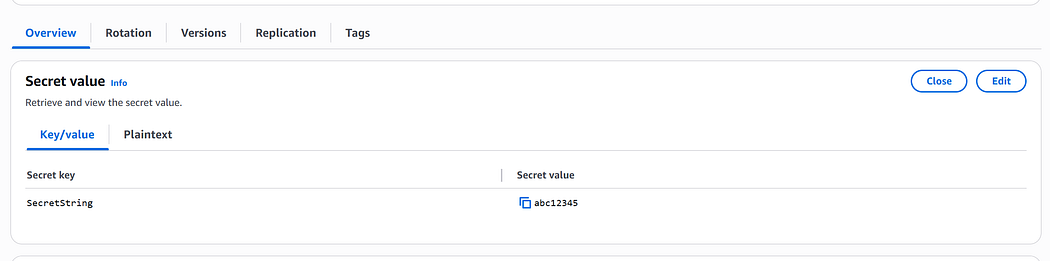
Quickly breaking this down, assume your Environment Variable is called ‘MY_SECRET_NAME’ and in Secrets Manager your key is called ‘SecretString’. This double-layer of indirection lets you change secrets dynamically just by adjusting the environment variable.
In Environment Variables, you’d assign it like this:
Press enter or click to view image in full size
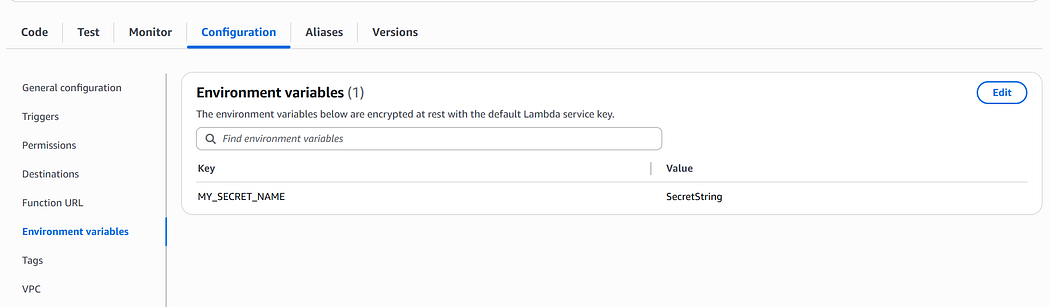
And in Secrets Manager, you’d assign it like this:
Press enter or click to view image in full size
Here’s a helpful visual summary of how Lambda, environment variables, and Secrets Manager interact:
Press enter or click to view image in full size
Wrap Up
And that’s it! By using the power of Lambda function Environment Variables and Secrets Manager for extra security, you can create the ecosystem for your code without hardcoding any changing values into your script.
This is a very helpful tool, especially when it comes to creating Dev and Prod Lambdas for testing, but is also useful in many other situations. Having the ability to configure your environment and to add an extra layer of security puts you on your way to cleaner, faster, more secure application deployments.
Happy Learning!